
Outlook 2025
The desktop client Outlook 2025 has not yet been announced final, so this is the guide for those testing the BETA version
Open Outlook and click the Settings icon and then Manage for the email account you want to use with mySMTP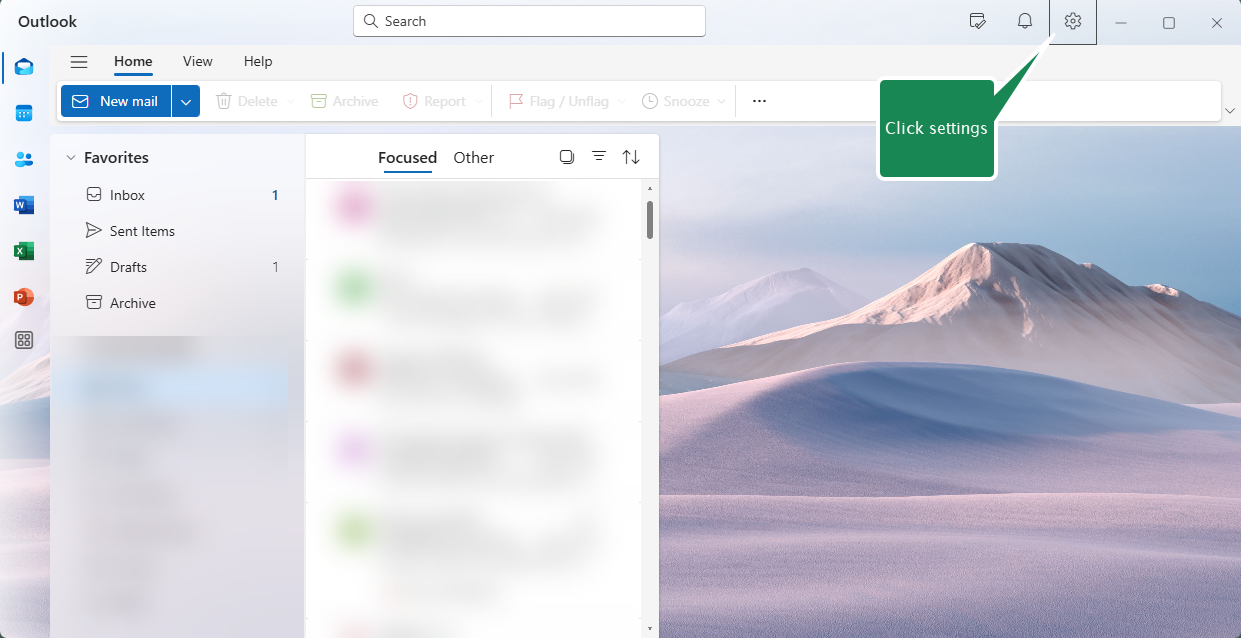

Type the Password for incoming email to enable account editing
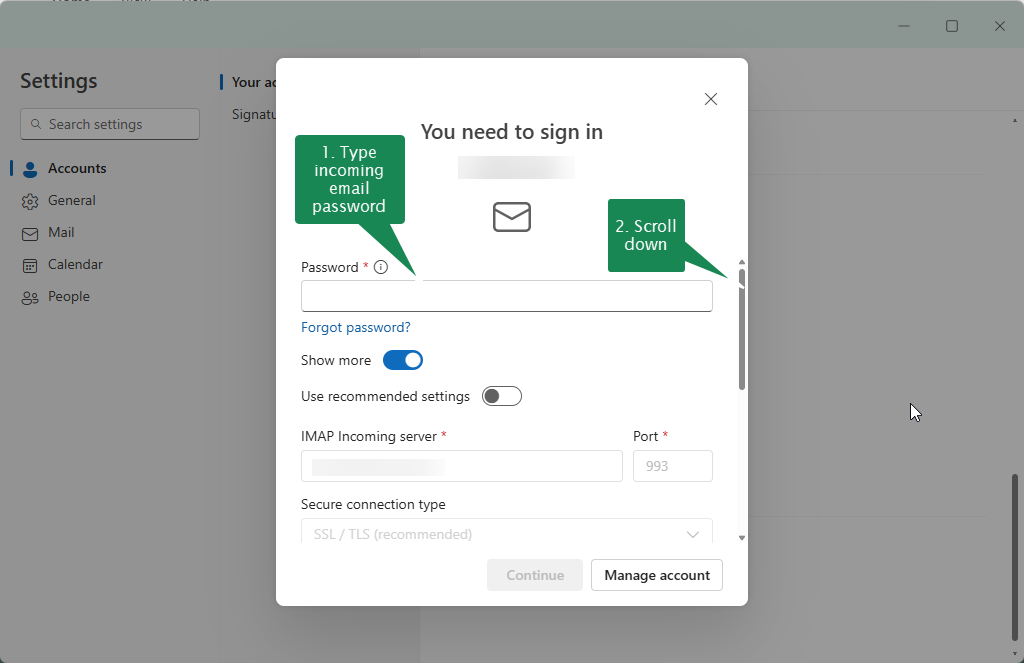
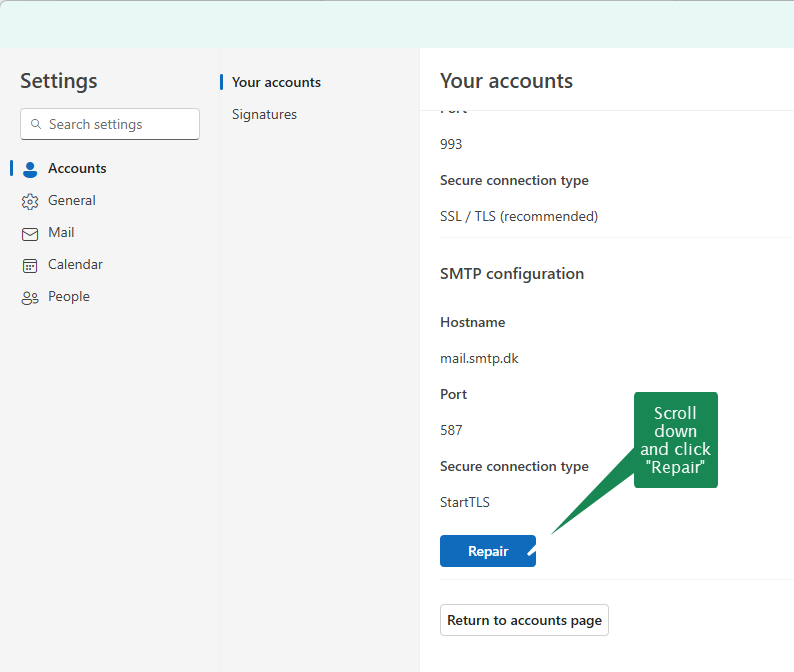
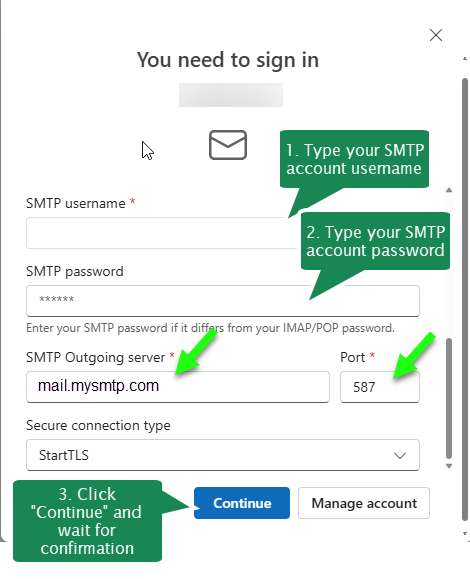
Insert the marked information from your setup email or SMTP account.
Click Continue when done and wait for confirmation.
setup guide outlook test
<!DOCTYPE html>
<html lang="en">
<head>
<meta charset="UTF-8">
<meta name="viewport" content="width=device-width, initial-scale=1.0"><title>Outlook 2016–2025 SMTP Setup Guide</title><style>
:root {
--green: #16853f;
--green-dark: #0e6230;
--navy: #0d2946;
--blue: #0a64c9;
--text: #18222c;
--muted: #5c6873;
--border: #d7e1e7;
--background: #eef3f6;
--panel: #ffffff;
}* {
box-sizing: border-box;
}html {
scroll-behavior: smooth;
}body {
margin: 0;
background: var(--background);
color: var(--text);
font-family: Arial, Helvetica, sans-serif;
line-height: 1.45;
}.guide {
width: min(1180px, 100%);
margin: 0 auto;
padding: 34px;
background: var(--panel);
}.header {
display: grid;
grid-template-columns: 96px 1fr 96px;
gap: 24px;
align-items: center;
margin-bottom: 22px;
}.outlook-logo {
position: relative;
width: 88px;
height: 88px;
border-radius: 14px;
background: linear-gradient(135deg, #0b68c3, #10a0ea);
box-shadow: 0 8px 20px rgba(0, 84, 160, 0.2);
}.outlook-logo::before {
content: "O";
position: absolute;
left: -12px;
top: 21px;
width: 56px;
height: 56px;
display: grid;
place-items: center;
border-radius: 8px;
background: #0863b8;
color: #fff;
font-size: 38px;
font-weight: 700;
box-shadow: 0 5px 12px rgba(0, 0, 0, 0.18);
}.outlook-logo::after {
content: "";
position: absolute;
right: 12px;
top: 19px;
width: 52px;
height: 48px;
border: 3px solid rgba(255, 255, 255, 0.9);
border-radius: 4px;
}h1 {
margin: 0;
color: var(--navy);
font-size: clamp(34px, 5vw, 52px);
line-height: 1.03;
letter-spacing: -1.5px;
}h1 span {
display: block;
color: var(--green);
}.subtitle {
margin-top: 10px;
color: #263b4f;
font-size: clamp(18px, 2.2vw, 24px);
}.subtitle strong {
color: var(--green);
}.mail-icon {
position: relative;
width: 84px;
height: 84px;
margin-left: auto;
border: 3px solid var(--green);
border-radius: 50%;
}.mail-icon::before {
content: "";
position: absolute;
left: 18px;
top: 27px;
width: 43px;
height: 29px;
border: 3px solid var(--green);
border-radius: 3px;
}.mail-icon::after {
content: "";
position: absolute;
left: 24px;
top: 29px;
width: 31px;
height: 21px;
border-left: 3px solid var(--green);
border-bottom: 3px solid var(--green);
transform: rotate(-45deg);
}.notice {
display: flex;
gap: 14px;
align-items: center;
margin-bottom: 18px;
padding: 15px 18px;
border: 1px solid #cce4d5;
border-radius: 10px;
background: #f6fcf8;
font-size: 18px;
}.notice-icon {
flex: 0 0 auto;
width: 38px;
height: 38px;
display: grid;
place-items: center;
border-radius: 50%;
background: var(--green);
color: #fff;
font-size: 25px;
font-weight: 700;
}.steps {
display: grid;
grid-template-columns: repeat(2, minmax(0, 1fr));
gap: 16px;
}.step {
display: grid;
grid-template-columns: 165px 1fr;
gap: 16px;
min-height: 330px;
padding: 17px;
border: 1px solid var(--border);
border-radius: 12px;
background: #fff;
}.step-heading {
display: flex;
gap: 10px;
align-items: flex-start;
margin-bottom: 18px;
}.step-number {
flex: 0 0 auto;
width: 38px;
height: 38px;
display: grid;
place-items: center;
border-radius: 7px;
background: var(--green);
color: #fff;
font-size: 22px;
font-weight: 700;
}.step h2 {
margin: 4px 0 0;
color: var(--navy);
font-size: 20px;
line-height: 1.1;
}.step-copy {
font-size: 17px;
}.step-copy strong {
color: #111;
}.highlight {
color: var(--green);
font-size: 22px;
font-weight: 700;
}.window {
overflow: hidden;
align-self: stretch;
border: 1px solid #bac5cd;
border-radius: 7px;
background: #fafafa;
box-shadow: 0 2px 7px rgba(0, 0, 0, 0.07);
}.window-title {
height: 35px;
padding: 9px 12px;
border-bottom: 1px solid #d9dfe4;
background: #f2f2f2;
font-size: 13px;
}.window-body {
padding: 14px;
color: #2d3a46;
font-size: 13px;
}.tabs {
display: flex;
border-bottom: 1px solid #d5dde2;
background: #fff;
}.tab {
padding: 9px 10px;
font-size: 12px;
white-space: nowrap;
}.tab.active {
border-bottom: 3px solid #1976d2;
font-weight: 700;
}.field {
display: grid;
grid-template-columns: 1fr 1.35fr;
gap: 8px;
align-items: center;
margin: 8px 0;
}.input {
min-height: 28px;
padding: 5px 7px;
border: 1px solid #bdc7cf;
background: #fff;
}.checkbox {
margin: 11px 0;
}.button-row {
margin-top: 15px;
text-align: right;
}.button {
display: inline-block;
margin-left: 7px;
padding: 6px 18px;
border: 1px solid #7fa8d8;
background: #fff;
}.button.primary {
border-color: #3b86d0;
background: #edf5ff;
}.file-menu {
width: 132px;
margin: 12px auto;
padding: 12px;
border-radius: 5px;
background: #0b64b8;
color: #fff;
}.file-menu div {
padding: 8px 6px;
font-size: 12px;
}.file-menu .active {
border: 1px solid rgba(255, 255, 255, 0.7);
border-radius: 4px;
}.account-row {
margin-top: 12px;
padding: 9px;
background: #0d6ac6;
color: #fff;
font-size: 12px;
}.summary {
display: grid;
grid-template-columns: 1.25fr 0.75fr;
gap: 16px;
margin-top: 18px;
}.summary-box {
padding: 18px;
border: 1px solid var(--border);
border-radius: 12px;
background: #fff;
}.summary-title {
margin-bottom: 12px;
color: var(--green-dark);
font-size: 18px;
font-weight: 700;
}table {
width: 100%;
border-collapse: collapse;
font-size: 14px;
}td {
padding: 8px 10px;
border: 1px solid #d7e0e6;
}td:first-child {
width: 46%;
font-weight: 700;
}.brand {
display: grid;
place-items: center;
min-height: 185px;
text-align: center;
}.brand-name {
color: var(--navy);
font-size: 36px;
font-weight: 700;
}.brand-name span {
color: var(--green);
}.brand-text {
margin-top: 6px;
color: var(--muted);
}@media (max-width: 900px) {
.guide {
padding: 20px;
}.header {
grid-template-columns: 72px 1fr;
}.mail-icon {
display: none;
}.outlook-logo {
width: 67px;
height: 67px;
}.outlook-logo::before {
top: 14px;
width: 45px;
height: 45px;
font-size: 29px;
}.outlook-logo::after {
top: 14px;
width: 39px;
height: 36px;
}.steps,
.summary {
grid-template-columns: 1fr;
}.step {
grid-template-columns: 1fr;
min-height: auto;
}
}@media print {
@page {
size: A4 landscape;
margin: 8mm;
}body {
background: #fff;
}.guide {
width: 100%;
padding: 0;
}.step {
break-inside: avoid;
}
}
</style>
</head><body>
<main class="guide"><header class="header">
<div class="outlook-logo" aria-hidden="true"></div><div>
<h1>
OUTLOOK 2016–2025
<span>SETUP GUIDE</span>
</h1><div class="subtitle">
Configure outgoing SMTP using
<strong>mail.smtp.dk</strong>
</div>
</div><div class="mail-icon" aria-hidden="true"></div>
</header><section class="notice">
<div class="notice-icon">✓</div><div>
Your account already uses IMAP for incoming mail.<br>
Follow these steps to configure the outgoing SMTP server.
</div>
</section><section class="steps"><article class="step">
<div>
<div class="step-heading">
<div class="step-number">1</div>
<h2>OPEN ACCOUNT SETTINGS</h2>
</div><div class="step-copy">
Open Outlook and go to:
<br><br>
<strong>
File > Account Settings > Account Settings…
</strong>
</div>
</div><div class="window">
<div class="file-menu">
<div>Info</div>
<div>Open & Export</div>
<div>Save As</div>
<div>Print</div>
<div>Office Account</div>
<div>Feedback</div>
<div>Options</div>
<div>Exit</div>
<div class="active">Account Settings</div>
</div>
</div>
</article><article class="step">
<div>
<div class="step-heading">
<div class="step-number">2</div>
<h2>SELECT YOUR ACCOUNT</h2>
</div><div class="step-copy">
Select your existing email account
<strong>(IMAP)</strong>
and click
<strong>Change…</strong>
</div>
</div><div class="window">
<div class="window-title">Account Settings</div><div class="window-body">
<strong>Email Accounts</strong><div class="tabs">
<div class="tab active">Email</div>
<div class="tab">Data Files</div>
<div class="tab">RSS Feeds</div>
</div><p>
New… Repair…
<strong>Change…</strong>
Remove
</p><div class="account-row">
</div>
</div>
</div>
</article><article class="step">
<div>
<div class="step-heading">
<div class="step-number">3</div>
<h2>OUTGOING SERVER SETTINGS</h2>
</div><div class="step-copy">
In the Change Account window, set:
<br><br>
<strong>Outgoing mail server:</strong>
<br>
<span class="highlight">mail.smtp.dk</span>
<br><br>
Then click
<strong>More Settings…</strong>
</div>
</div><div class="window">
<div class="window-title">Change Account</div><div class="window-body">
<strong>POP and IMAP Account Settings</strong><div class="field">
<span>Your Name:</span>
<div class="input">Your Name</div>
</div><div class="field">
<span>Email Address:</span>
<div class="input">
</div><div class="field">
<span>Account Type:</span>
<div class="input">IMAP</div>
</div><div class="field">
<span>Incoming server:</span>
<div class="input">imap.yourdomain.dk</div>
</div><div class="field">
<span>Outgoing server:</span>
<div class="input">mail.smtp.dk</div>
</div><div class="button-row">
<span class="button primary">More Settings…</span>
</div>
</div>
</div>
</article><article class="step">
<div>
<div class="step-heading">
<div class="step-number">4</div>
<h2>OUTGOING SERVER TAB</h2>
</div><div class="step-copy">
Open the
<strong>Outgoing Server</strong>
tab.
<br><br>Check:
<br>
<strong>
My outgoing server (SMTP) requires authentication
</strong>
<br><br>Choose:
<br>
<strong>
Use same settings as my incoming mail server
</strong>
</div>
</div><div class="window">
<div class="window-title">Internet Email Settings</div><div class="tabs">
<div class="tab">General</div>
<div class="tab active">Outgoing Server</div>
<div class="tab">Advanced</div>
</div><div class="window-body">
<div class="checkbox">
☑ My outgoing server (SMTP) requires authentication
</div><div class="checkbox">
◉ Use same settings as my incoming mail server
</div><div class="checkbox">
○ Log on using
</div><div class="field">
<span>User Name:</span>
<div class="input"></div>
</div><div class="field">
<span>Password:</span>
<div class="input"></div>
</div><div class="button-row">
<span class="button primary">OK</span>
<span class="button">Cancel</span>
</div>
</div>
</div>
</article><article class="step">
<div>
<div class="step-heading">
<div class="step-number">5</div>
<h2>ADVANCED TAB</h2>
</div><div class="step-copy">
Open the
<strong>Advanced</strong>
tab and verify:
<br><br><strong>Outgoing server (SMTP):</strong>
<br>
<span class="highlight">587</span>
<br><br><strong>Encrypted connection:</strong>
<br>
<span class="highlight">STARTTLS</span>
</div>
</div><div class="window">
<div class="window-title">Internet Email Settings</div><div class="tabs">
<div class="tab">General</div>
<div class="tab">Outgoing Server</div>
<div class="tab active">Advanced</div>
</div><div class="window-body">
<strong>Server Port Numbers</strong><div class="field">
<span>Incoming server (IMAP):</span>
<div class="input">993</div>
</div><div class="field">
<span>Incoming encryption:</span>
<div class="input">SSL/TLS</div>
</div><div class="field">
<span>Outgoing server (SMTP):</span>
<div class="input">587</div>
</div><div class="field">
<span>Outgoing encryption:</span>
<div class="input">STARTTLS</div>
</div><div class="button-row">
<span class="button primary">OK</span>
<span class="button">Cancel</span>
</div>
</div>
</div>
</article><article class="step">
<div>
<div class="step-heading">
<div class="step-number">6</div>
<h2>TEST AND FINISH</h2>
</div><div class="step-copy">
Click
<strong>Next</strong>
to test your settings.
<br><br>When the test succeeds, click
<strong>Close</strong>.
<br><br>Then click
<strong>Finish</strong>
to save the account settings.
</div>
</div><div>
<div class="window" style="margin-bottom: 14px;">
<div class="window-title">Test Account Settings</div><div class="window-body">
Congratulations! All tests completed successfully.<div class="button-row">
<span class="button primary">Close</span>
</div>
</div>
</div><div class="window">
<div class="window-title">Change Account</div><div class="window-body">
Congratulations! Your account settings are up to date.<div class="button-row">
<span class="button primary">Finish</span>
</div>
</div>
</div>
</div>
</article></section><section class="summary"><div class="summary-box">
<div class="summary-title">
⚙ OUTGOING SMTP SETTINGS SUMMARY
</div><table>
<tr>
<td>Outgoing mail server</td>
<td><strong>mail.smtp.dk</strong></td>
</tr><tr>
<td>SMTP port</td>
<td><strong>587</strong></td>
</tr><tr>
<td>Encryption</td>
<td><strong>STARTTLS</strong></td>
</tr><tr>
<td>Authentication</td>
<td><strong>Required</strong></td>
</tr><tr>
<td>Outgoing server option</td>
<td>
My outgoing server (SMTP) requires authentication
</td>
</tr><tr>
<td>Authentication method</td>
<td>
Use same settings as my incoming mail server
</td>
</tr>
</table>
</div><div class="summary-box brand">
<div>
<div class="brand-name">
SMTP<span>.dk</span>
</div><div class="brand-text">
Reliable SMTP for your business.
</div>
</div>
</div></section></main>
</body>
</html>
No questions yet.